Roku Ultra Review
The streaming box we install most often — and the one that earns it.
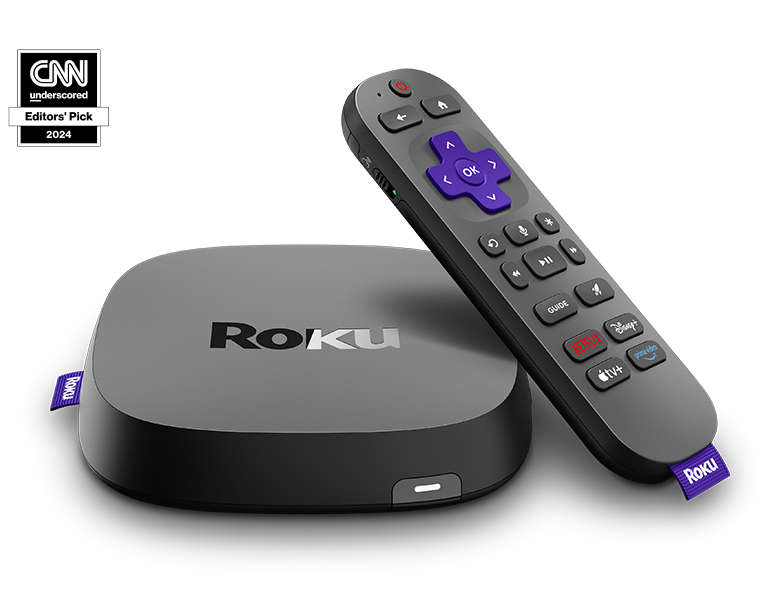




Our Take
After installing thousands of streaming devices in homes, the box we keep coming back to is the Roku Ultra. Not because it's the flashiest on the shelf — it isn't. Because it's the one that's still running five and ten years after the install. Still getting updates. Still doing its job without complaint.
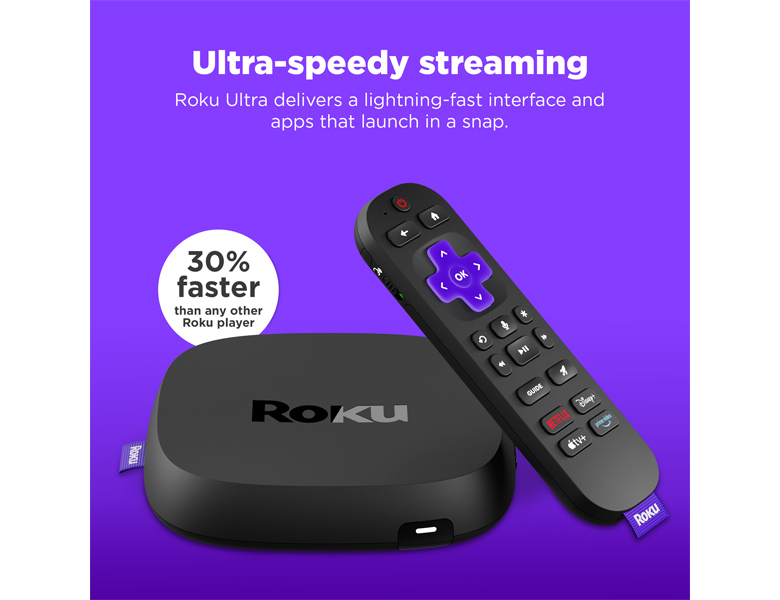
The streaming aisle is loud. Every six months a new gadget claims to be "the best." Most are forgotten in a year. The Roku Ultra wins on the boring stuff that actually matters: it turns on when you press the button, the apps open fast, the search finds your show, and the remote works through cabinet doors so you can hide the box completely.
For most families cutting cable, this is the right pick. It does what you need it to do and then gets out of the way — which is exactly what good technology is supposed to do.
When to buy it
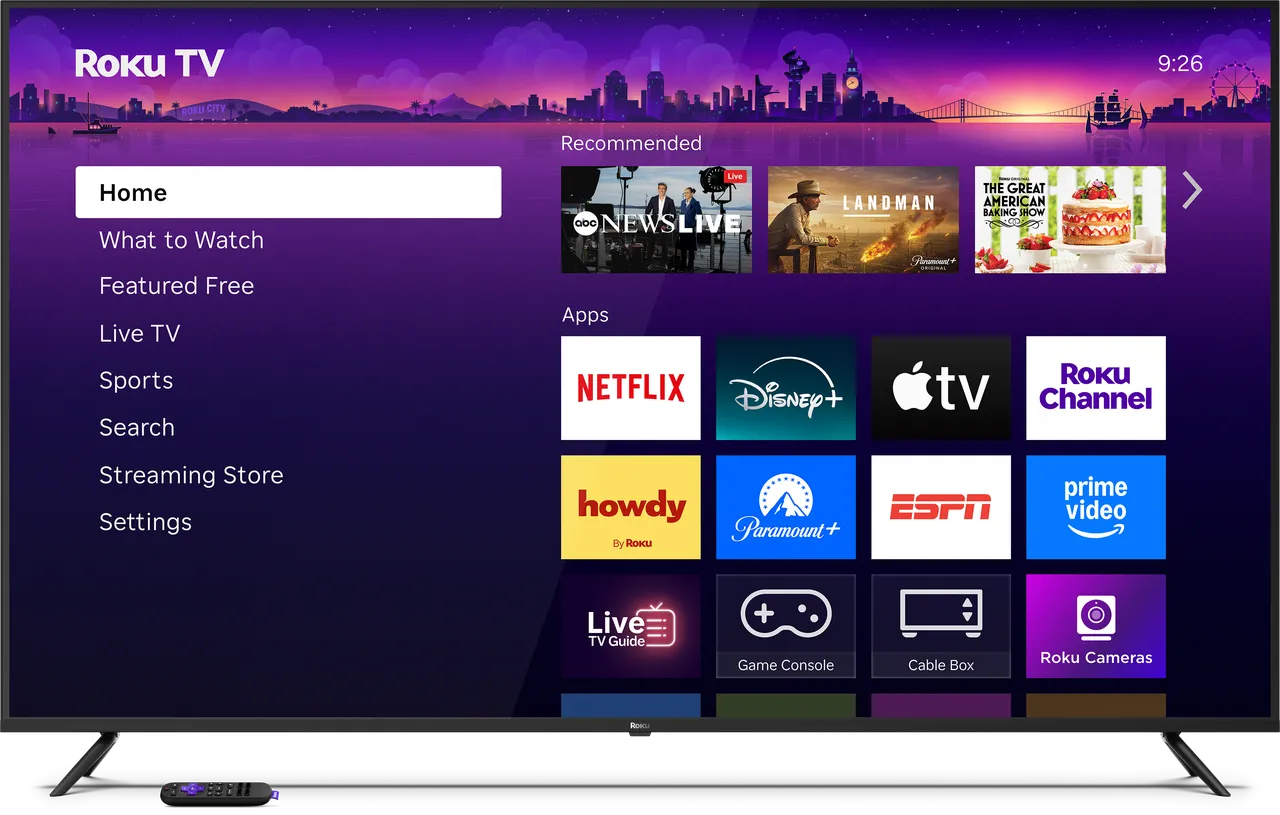
You're cutting cable. Every streaming service worth having runs on it — Netflix, YouTube TV, Hulu + Live TV, Max, Disney+, Paramount+, Peacock, ESPN+, and even your old cable company's app (Xfinity Stream, Spectrum TV, Fios TV). You won't be hunting for a missing app.
Your TV is more than 3 years old. Older smart TVs slow down and start dropping apps. The Roku Ultra plugs in, takes ten minutes to set up, and gives your TV another five good years.
You're a renter. It's $99 and it goes wherever you go. No install, no cable box rental, no contract.
You want something your parents can use. Big buttons. Voice search. Almost no settings to mess with. It's the box we recommend to families who don't want to call for help every time something doesn't work.
When to skip it
You already have a Roku TV. Many TCL, Hisense, Onn, and Roku-branded TVs run the exact same software as this box.
How to check: look at your TV remote. If there's a purple Roku button in the middle, you already have it built in. No need for a separate box.
Your whole house runs on iPhones. If everyone in your family uses iPhone and you already share photos and music with Apple devices, the Apple TV 4K connects to those things more smoothly. It costs $30 more.
You're a serious gamer or you keep your own movie library on a hard drive. There are more powerful boxes built for that crowd (the Nvidia Shield is the popular one) — they cost about twice as much. Skip the Roku if that's you.
Key features (and what they actually mean for you)
Hide the box anywhere — the remote uses Bluetooth, not infrared
The Roku Ultra remote uses Bluetooth (radio waves), not the old-style point-and-click infrared beam.
📦 Why this matters in your living room: Bluetooth works through walls and wood. You can tuck the box behind the TV, inside a closed cabinet, or on a shelf across the room — the remote still works perfectly. No more leaving a black box sitting out in front of the TV cluttering up the entertainment center. This is the install detail that wins families over.
4K HDR — works with every premium picture format
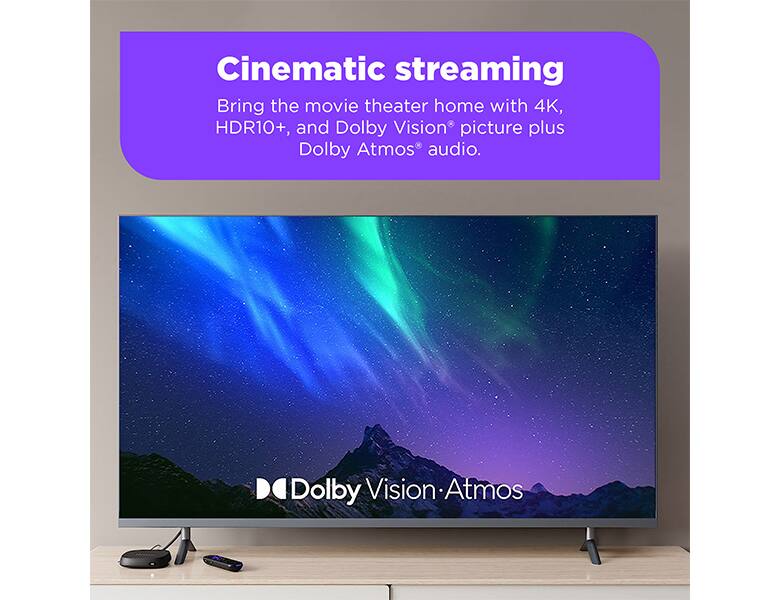
The Roku Ultra plays 4K shows and movies in both Dolby Vision and HDR10+ — the two competing "high dynamic range" formats that make night scenes look darker and daylight scenes look brighter.
🎬 In plain English: HDR is the picture-quality upgrade Netflix and Disney+ keep advertising. Most streaming boxes pick one format and ignore the other. Roku supports both — so whatever your shows are filmed in, you get the better-looking version automatically.
Dolby Atmos sound passes through to your soundbar
If you have a soundbar or surround system that supports Atmos, the Ultra sends the audio through correctly.
🔊 In plain English: Atmos is surround sound that includes overhead audio — helicopters fly over you, rain falls from the ceiling. Most premium soundbars (Sonos Arc, Bose Smart Soundbar 900, Samsung Q990) support it. "Passes through" means the Roku doesn't try to do the audio processing itself — it hands the raw signal to your soundbar to handle properly. Which is exactly what you want.
Built-in Ethernet port — no buffering excuses
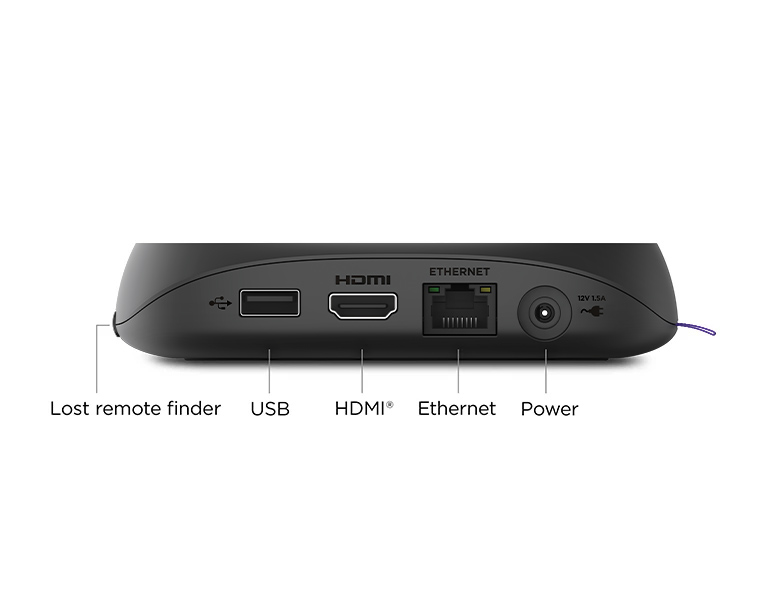
The Ultra has a wired internet jack on the back. Most cheap streaming sticks don't. A $10 cable to your router eliminates 80% of "my show keeps buffering" complaints. Wi-Fi works fine most of the time — but when it doesn't, you've got a wired backup built in.
Voice search that works across every app
Press the microphone button on the remote and say "find Ted Lasso." The Roku searches Netflix, Apple TV+, Disney+, Max, Hulu, and every other app you have installed. It tells you where the show is available and what it costs. No more bouncing between four apps trying to remember which one has what.
Bluetooth Headphone Mode — pair AirPods straight to the box
Beyond the wired headphone jack on the remote, the Roku Ultra can pair Bluetooth headphones directly to the player itself. AirPods, Bose, Sony — any modern wireless headphones.
🎧 The late-night solution most families actually want. Pair once, and TV audio routes to your headphones whenever you put them in. Kids asleep down the hall, partner reading next to you — no problem.
The remote — why it beats every competitor
The remote is the #1 reason we install Roku Ultras over Apple TV, Fire TV, or Google TV. Here's the head-to-head against the other three premium streamers in the same price range:
Bottom line: Roku is the only one of the four with a headphone jack on the remote, backlit buttons, AND a lost-remote finder — and it costs the same or less than the others.
| Remote feature | Roku Ultra | Apple TV 4K | Fire TV Stick 4K Max | Google TV Streamer |
|---|---|---|---|---|
| Bluetooth — hide the box | ✓ | ✓ | ✓ | ✓ |
| Headphone jack on remote | ✓ | ✗ | ✗ | ✗ |
| Lost-remote finder | ✓ | ✗ | ✗ | ✓ |
| Backlit buttons | ✓ | ✗ | ✗ | ✗ |
| Voice search across apps | ✓ Hands-free | ✓ Siri (press) | ✓ Alexa |
Headphone jack on the remote
Plug wired headphones directly into the remote and the TV audio routes there. Late-night TV without waking the rest of the house.
🤫 Apple TV doesn't have this. You can pair AirPods to the box, which works but adds steps. The Roku solution is dead simple — plug in any $10 headphones and you're done. This single feature has saved more marriages than we can count.
Lost-remote finder
Press the button on top of the Roku box and the remote starts beeping until you find it. The first time it falls into the couch cushions (and it will) — you'll remember why this is worth $20 on its own.
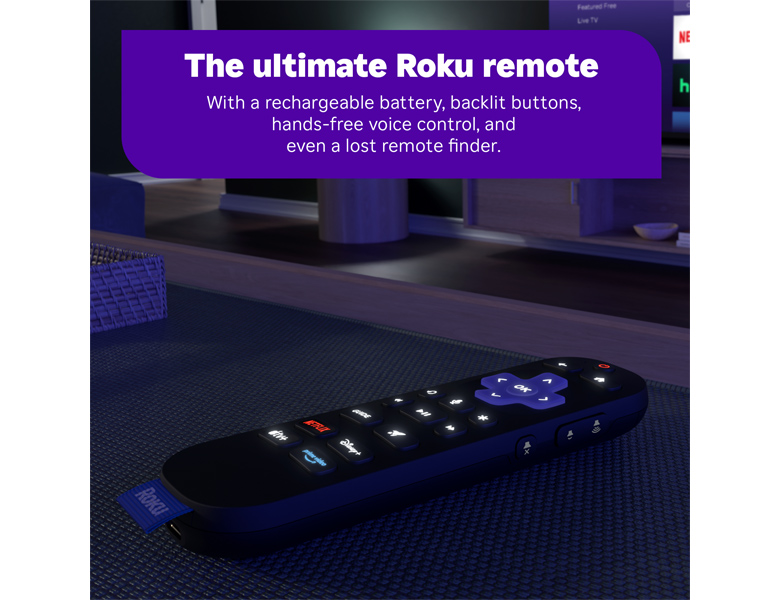
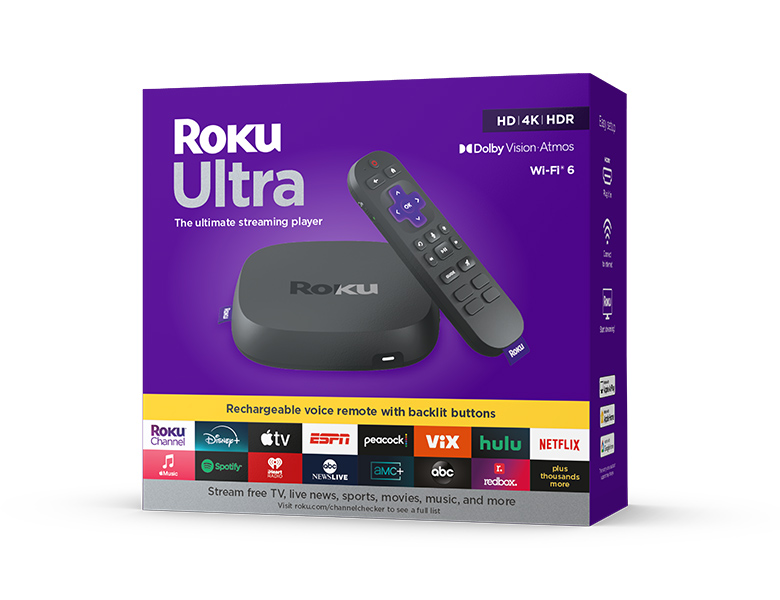
Beyond those two highlights, the Roku Voice Remote Pro 2 has backlit buttons that glow when you press them in a dark room, 2 personal shortcut buttons you can program to launch any app you want, and a rechargeable USB-C battery that lasts about two months per charge. The other three boxes in the table don't have backlit keys, and the Fire TV still ships with disposable AAA batteries.
Closed captions, parental controls, and accessibility
A quick note for families: the Roku Ultra has solid built-in support for closed captions (with adjustable font size and background), audio descriptions, and screen readers. PIN-protected parental controls can lock specific apps or rated content. All of these settings live under Settings → Accessibility & Captions and Settings → Parental Controls. Worth a five-minute tour after setup.
What's missing
The latest Wi-Fi generation. The Ultra uses Wi-Fi 6, not Wi-Fi 6E or 7. For nearly every home this doesn't matter — streaming doesn't push the limits of Wi-Fi 6.
The home screen shows ads. Roku puts a large sponsored content tile on the home page. You can ignore it, but it's there. Apple TV doesn't do this; Fire TV does it worse.
It's not a smart-home hub. If you want Matter and Thread support for smart locks and bulbs, the Google TV Streamer is the cheap path to a hub. The Roku doesn't try to be that.
More photos
Ready to buy?
Price is the same at every retailer — pick whoever you already shop with. Free shipping at most.
Setup tips from a pro installer 8 tips · click to expand
- Run an Ethernet cable to it if you can A $10 cable from the box to your router eliminates 80% of buffering complaints. This is the single biggest setup decision.
- Set HDR to 'Auto Detect' In Settings → Display Type. Many TVs negotiate the HDR signal poorly out of the box. Auto Detect fixes it cleanly.
- Enable 'Auto (Dolby Atmos)' audio mode In Settings → Audio. The default is stereo — fine for built-in TV speakers, wasting your soundbar.
- Pair the remote first, then connect to Wi-Fi If anything goes wrong later, troubleshooting is much easier in this order.
- Reprogram the shortcut buttons Hold any shortcut button (Netflix, Disney+, etc.) for about five seconds — the remote will ask you to assign a different app.
- Turn on Fast TV Start Settings → System → Power. The box wakes instantly instead of cold-booting every time you turn on the TV.
- Reduce home-screen ads Settings → Privacy → Advertising. Turn on 'Limit ad tracking' and 'Reset advertising identifier' to reduce sponsored content.
- Take advantage of Bluetooth — hide the box Tuck the Roku behind your TV or inside a cabinet. The remote works fine, your entertainment center looks cleaner.