Apple TV 4K (3rd gen) Review
The most polished streaming experience money can buy — and the longest-lived box on the market.
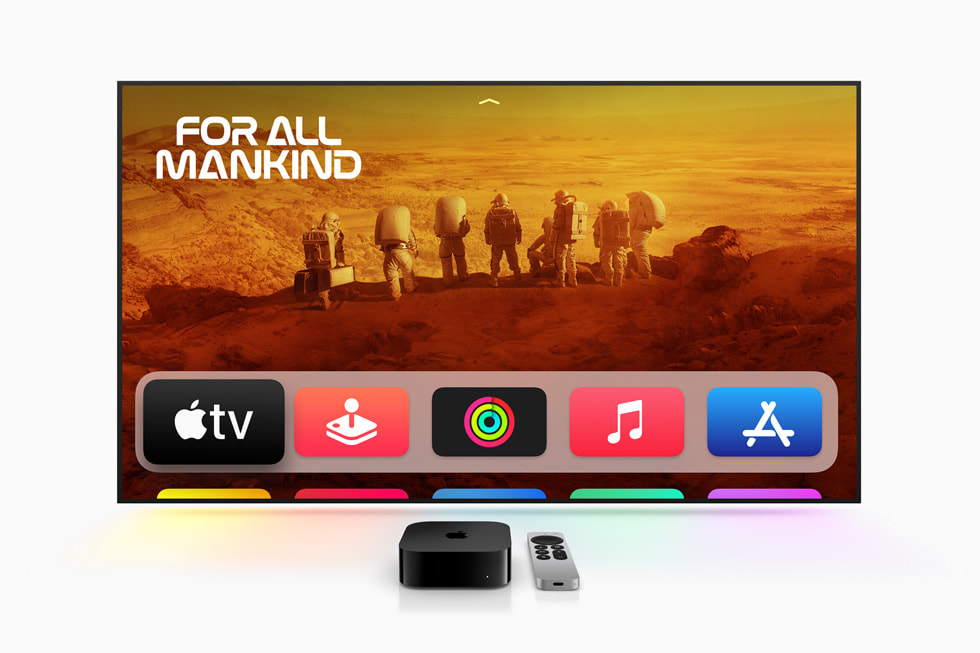




Our Take
The Apple TV 4K has been in client living rooms for years now — long enough to know exactly who it works for. If your house already runs on iPhones, this is the best streaming box you can buy. For everyone else, it's usually overkill.
The interface is genuinely fast and stays that way. While most budget streaming sticks start feeling sluggish after 2–3 years, the Apple TV's overbuilt A15 chip keeps the experience smooth for 5–6 years. The home screen has no ads, and the Siri Remote controls your TV's power and volume right out of the box.
What you're really paying for is the deep Apple integration — especially AirPlay and HomeKit. If you live in the Apple ecosystem, those features are genuinely useful every day. If you don't, the Roku Ultra does the streaming job just as well for noticeably less money.
When to buy it
Most people in your house use iPhones. AirPlay is the killer feature and it only works from Apple devices. The instant your kid wants to show you a TikTok or you want to project the photo slideshow at Thanksgiving, the Apple TV is already on the network ready to receive. One tap. No other streaming box does this from iPhones reliably.
You already pay for Apple One (or Apple TV+, Apple Music, Apple Arcade individually). All of them run natively with a tighter experience than they have anywhere else. If you're paying for the bundle anyway, this turns your TV into another place to use what you already own.
You want a HomeKit smart-home hub. (Wi-Fi + Ethernet model only.) Controls your HomeKit and Matter-enabled locks, lights, cameras, and sensors from anywhere — and acts as a Thread border router for low-power IoT devices. If you've been building out HomeKit, this is the "brain" that doesn't need a separate HomePod.
You hate ads on your home screen. Apple TV is the only mainstream streaming box that doesn't show sponsored content tiles. Roku does. Fire TV does it worse.
Privacy matters to you. Apple doesn't sell your viewing data to advertisers. Roku and Amazon do.
Someone in your family relies on accessibility features. Apple has the strongest screen-reader, vision, and motor-accessibility story of any streaming box — better than anything Roku, Fire TV, or Google TV ships with.
When to skip it
Your house has mixed iPhones and Androids. AirPlay only works from Apple devices. The Roku Ultra handles AirPlay from iPhones AND works equally well for Android users — better fit for mixed households.
You don't use any Apple services. No Apple TV+, no Apple Music, no Apple Photos, no HomeKit? You're paying for ecosystem features you'll never touch. The Roku Ultra is $100 less and does the streaming job equally well.
You want a headphone jack on the remote. Apple's Siri Remote doesn't have one. You can pair AirPods to the box (works seamlessly), but if you don't own AirPods, the Roku approach — just plug $10 wired headphones into the remote — is simpler.
You're a serious gamer or keep your own movie library on a hard drive. The Nvidia Shield TV Pro is purpose-built for Plex servers, cloud gaming, and AI-upscaling 1080p content.
Key features (and what they actually mean for you)
AirPlay — the feature that justifies the premium
Hold your iPhone near the Apple TV (or tap the AirPlay icon from any iOS app) and whatever's on your phone instantly shows up on the TV. Photos, video, music, your screen, presentations, the Apple Fitness workout you started in the bedroom.
📱 Why this matters: for Apple households, this is the single biggest reason to pick this box over any other. You may not think you'll use it — and then the first time you want to show grandma a video at Thanksgiving and it just works, you understand.
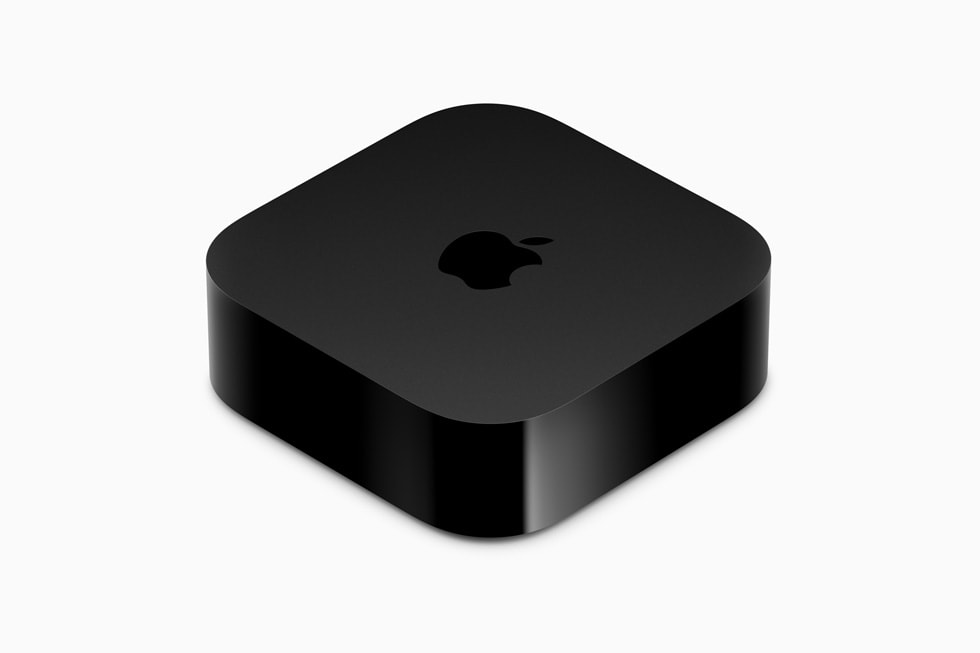
A15 Bionic chip — the same processor as an iPhone 13
The Apple TV uses Apple's flagship phone chip from a few years back. For a streaming device, this is laughably overpowered.
🚀 What the overkill buys you: a smooth interface that stays smooth for 5-6 years instead of 2-3. The chip has so much headroom that even five-year-old units in clients' homes still feel responsive. The best longevity bet on the market.
Every major HDR format — Dolby Vision, HDR10+, HDR10, HLG
The Apple TV 4K supports all four. Most streaming boxes pick one or two.
🎬 In plain English: HDR is the "premium picture" upgrade Netflix and Disney+ keep advertising. There are competing formats and most boxes only handle some. The Apple TV handles all of them — whatever your shows are filmed in, you get the better-looking version automatically.
Dolby Atmos passthrough to your soundbar
Full object-based Atmos audio passthrough to a capable AVR or soundbar.
🔊 In plain English: Atmos is surround sound with overhead audio — helicopters fly above you, rain falls from the ceiling. "Passthrough" means the Apple TV doesn't try to decode the audio itself; it hands the raw signal to your soundbar to do properly. Exactly what you want.
HDMI Quick Media Switching — no more black-screen flash between shows
The 3rd-gen Apple TV is the first streamer to support QMS over HDMI 2.1.
⚡ What QMS does: when your TV switches between two different formats — say, a 24fps HDR movie ending and a 60fps SDR sports broadcast starting — there's normally a 2-3 second black flash while the TV negotiates the new signal. QMS makes the transition instant. Requires a compatible TV (most 2022+ LG, Samsung, and Sony flagships have it).
Match Content — frame rate and HDR adjust to whatever you're watching
The Apple TV automatically matches its output to the source — 24fps for movies, 60fps for sports, HDR mode that matches the content.
✨ What it solves: without Match Content, your TV runs everything at one frame rate, which makes 24fps movies look weirdly smooth (the "soap opera effect"). Apple is the only streamer that handles this elegantly. Turn it on in Settings → Video and Audio → Match Content.
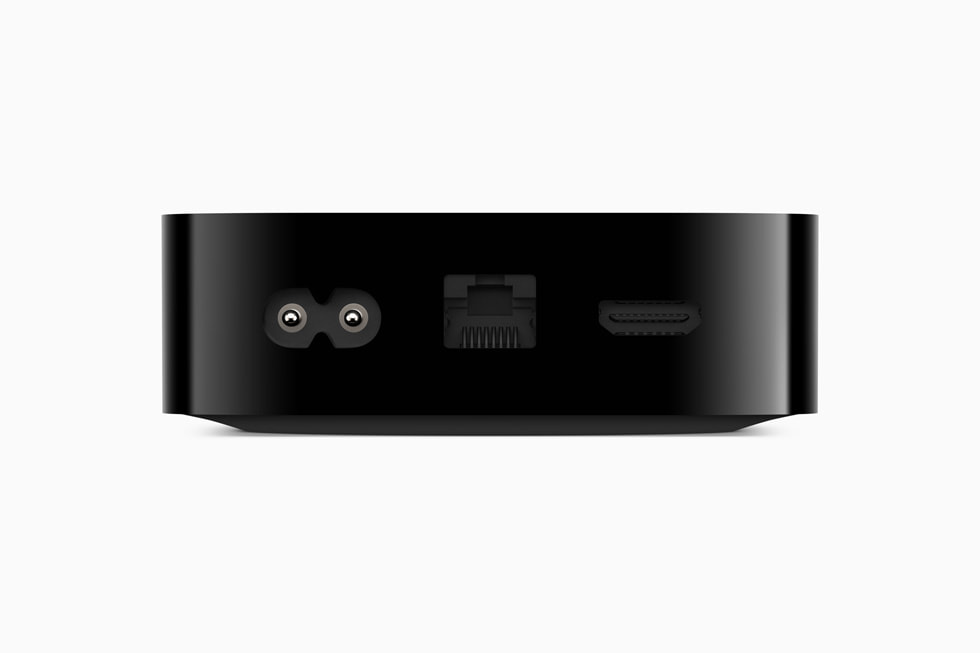
HomeKit hub (Wi-Fi + Ethernet model only)
The $249 model has a Thread radio and acts as a HomeKit hub for the whole house. Smart locks, lights, sensors, cameras — controllable from anywhere.
🏠 Important: the $199 Wi-Fi-only model does NOT have Thread or hub duties. If smart home is part of why you're buying, spend the extra $50 for the Ethernet model. The cheap tier is a worse value than it looks.
Spatial audio with AirPods Pro
Pair AirPods Pro and the Apple TV uses head-tracking to keep dialogue anchored to the screen — even as you turn your head.
The Siri Remote — real-world honest
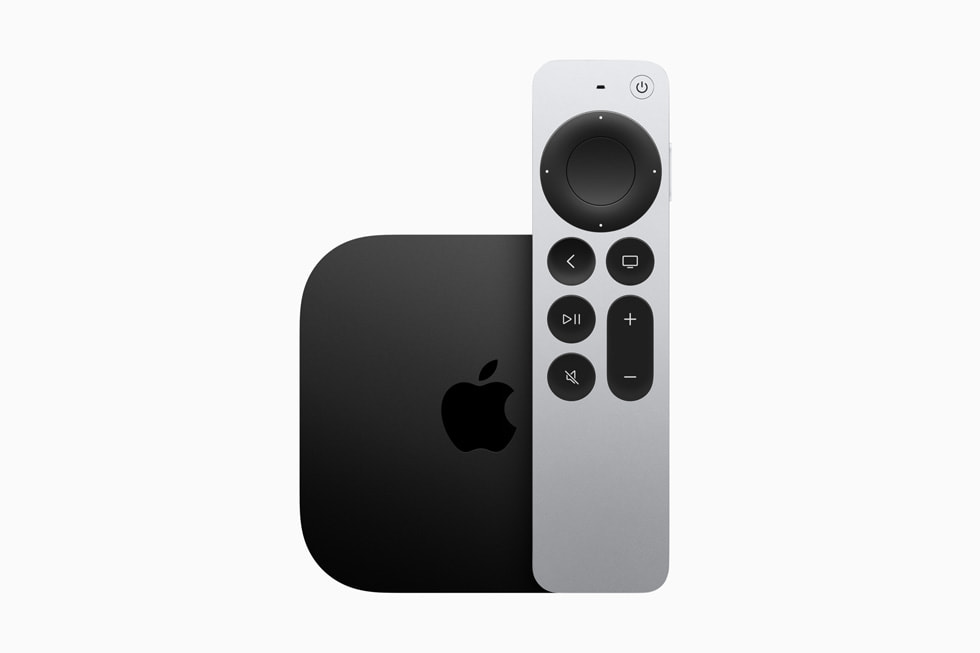
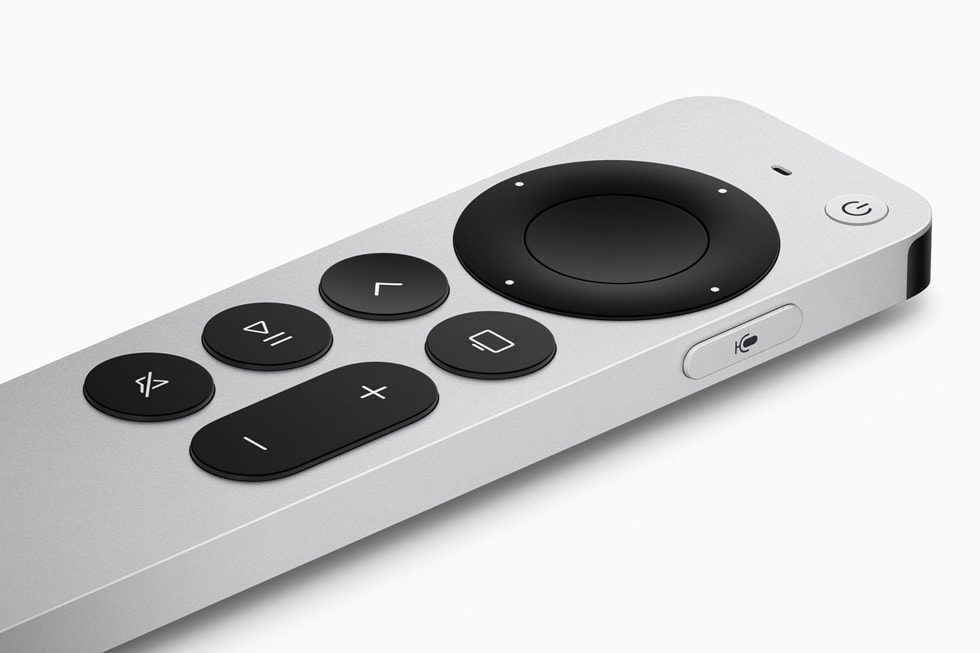
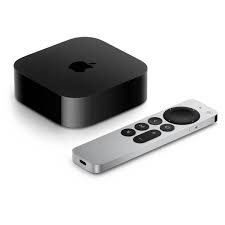
The current Siri Remote (the aluminum 2nd-generation one) is a real upgrade over Apple's original 2017 design. It controls your TV's volume, power, and input via IR or CEC out of the box — no setup required. Buttons you can find by feel. USB-C charging that lasts months. Genuinely premium as an object — aluminum, dense, well-weighted.
Here's what years of installing these in client homes has taught me that the spec sheet won't:
The touch clickpad is divisive
Younger users — especially kids — pick up the swipe scrolling instantly. The touch interface feels natural to anyone raised on a phone.
Older users (especially boomers and up) often struggle with it. They swipe too far, accidentally scroll past their show, and get frustrated. I'd estimate I disable touch scrolling in the settings on roughly half the Apple TVs I install for parents-of-parents. Once it's off and the remote behaves like a traditional D-pad, those clients are happy.
🛠️ Setup tip: if you're installing this for someone older, go to Settings → Remotes and Devices → Touch Surface Tracking and set it to "Off" or "Slow." Skip the frustration entirely.
It's premium, but slippery — and small
Aluminum, dense, feels great in the hand. And because it's small and slick, it falls into couch cushions and disappears regularly. There's no lost-remote finder on the box itself. You will lose this remote — the question is how often.
The iPhone is the secret backup remote
When the Siri Remote goes missing — and it will — swipe down from the top-right of any iPhone to open Control Center, tap the Apple TV remote icon, and you've got a full virtual remote on your phone. This has saved more service calls than I can count. Worth showing every Apple TV owner the day you set them up.
The iPhone keyboard pop-up is the feature nobody talks about
When you tap a search bar on the Apple TV — Netflix, Hulu, Apple TV+, anywhere — your nearby iPhone automatically shows a keyboard notification. Tap it once and you're typing on your phone instead of clicking letter-by-letter on the TV with the remote. Honestly one of my favorite Apple TV features, and the kind of seamless detail that makes Apple-ecosystem buyers stick around.
The long battery life is also a quiet problem
A single USB-C charge lasts 3-4 months of typical use, sometimes longer. The downside: it lasts so long that customers forget the remote is rechargeable at all. When it finally dies, the first call is "my remote is broken." Plug a USB-C cable in for an hour and it's back to life. Worth telling whoever you set this up for, before they have to call you.
How it compares to the competition
| Remote feature | Apple Siri Remote (2nd gen) | Roku Voice Remote Pro 2 |
|---|---|---|
| Voice search across apps | ✓ Siri (press to talk) | ✓ "Hey Roku" — hands-free |
| Headphone jack on the remote | ✗ | ✓ |
| Lost-remote finder | ✗ (use iPhone Control Center) | ✓ (button on box beeps remote) |
| Backlit buttons | ✗ | ✓ |
| Customizable shortcut buttons | ✗ | ✓ (2 buttons) |
| Battery / charging | Built-in rechargeable, USB-C | Rechargeable USB-C |
| Controls TV power, volume, input | ✓ Built-in IR + CEC | ✓ Most TVs |
| Replacement remote cost | $59 | $30 |
The Siri Remote feels more premium as an object. The Roku remote is plastic but more functional — Roku spent years polishing every small thing Apple is missing. Different design philosophies. Knowing the iPhone tricks above closes most of the gap for Apple households.
Closed captions, parental controls, and accessibility
This is where the Apple TV beats every other streaming box.
Accessibility: VoiceOver (full screen reader), Zoom, Hover Text, Increase Contrast, Reduce Motion, Audio Descriptions, Switch Control for users with limited motor control, Type to Siri for users who can't use voice. These work across every installed app — not just Apple's own.
Closed captions: fully customizable font size, color, background opacity, and style. One-tap toggle from any show, any app.
Parental controls: PIN-locked at the OS level (Settings → General → Restrictions). Block specific apps, content ratings, or in-app purchases. Applies across every installed service.
If you have a family member with vision, hearing, or motor needs — or you want stronger control over what kids can access — the Apple TV is the obvious pick on this dimension alone.
What's missing
The latest Wi-Fi generation. The Apple TV 4K uses Wi-Fi 6, one generation behind Wi-Fi 6E or 7. For streaming bandwidth this doesn't matter — streaming caps out far below what Wi-Fi 6 delivers — but in a packed apartment building with lots of interference, the newer standards do help.
No headphone jack on the remote. Real omission. AirPods cover the use case if you own them; if you don't, Roku's wired-headphones-in-the-remote approach is more universal.
No physical lost-remote finder. The iPhone Control Center remote covers this for Apple households, but if there's no iPhone nearby and the Siri Remote is gone — you're stuck.
The cheap Wi-Fi-only model is a worse value than it looks. The $199 model drops Ethernet AND Thread. The $249 Wi-Fi + Ethernet model is the one worth buying — $50 more buys you both features.
$100 more than the equivalent Roku. If you're going to use AirPlay, HomeKit, Apple One, and accessibility features, the premium pays back fast. If you're not, the Roku is the more practical buy.
More photos
Ready to buy?
Price is the same at every retailer — pick whoever you already shop with. Free shipping at most.
Setup tips from a pro installer 8 tips · click to expand
- Get the Wi-Fi + Ethernet model if you can afford the $20 more It's the only one with Gigabit Ethernet AND Thread border-router support for HomeKit smart-home devices. The plain Wi-Fi model is a worse deal — skip it.
- Sign in with your iCloud account FIRST Setup is dramatically easier if you've got an iPhone nearby. Hold your phone next to the box and it auto-fills Apple ID, Wi-Fi, everything. Don't skip that step.
- Enable 'Match Frame Rate' and 'Match Range' Settings → Video and Audio → Match Content. Default is off. Turn both on so the Apple TV passes through the native frame rate (24fps for movies, 60fps for sports) and HDR mode of whatever you're watching.
- Set audio output to 'Auto' Settings → Video and Audio → Audio Format → Change Format → Auto. Lets your soundbar/AVR get full Dolby Atmos when content supports it.
- Make it your HomeKit hub If you have a Wi-Fi + Ethernet model, open the Home app on your iPhone → Home Settings → Hubs & Bridges. The Apple TV auto-registers — now you can control your locks, lights, and cameras from anywhere.
- Pair AirPods for late-night TV Hold the AirPods case button near the Apple TV. They auto-pair. Now any TV audio routes to AirPods when you put them in — quieter than a remote headphone jack and more elegant.
- Disable 'Top Shelf' auto-play if it distracts you Settings → Apps → TV → Use Top Shelf. The big auto-playing preview at the top of the home screen drives some users nuts. Turn it off.
- Turn on closed captions globally Settings → Accessibility → Subtitles and Captioning. Custom font size, background color, and a one-tap toggle for any show. Better than the per-app caption settings most streamers force on you.